HiLook App - Download Latest Version - Hikvision
In today's world of security and surveillance, having control over your surveillance system anytime, anywhere is crucial. The HiLook app is an innovative solution designed to allow users to monitor their security cameras in real time, access recorded footage, and receive instant alerts for any motion detection—all at the touch of a button. Whether you're a homeowner, business owner, or just someone looking to keep an eye on your property, the HiLook app offers an easy-to-use interface for managing your surveillance devices remotely.
In this article, we'll walk you through everything you need to know about getting the HiLook app, from downloading it to setting it up and exploring its key features. We’ll also answer some frequently asked questions to help you maximize the use of this powerful tool.
What is the HiLook App?
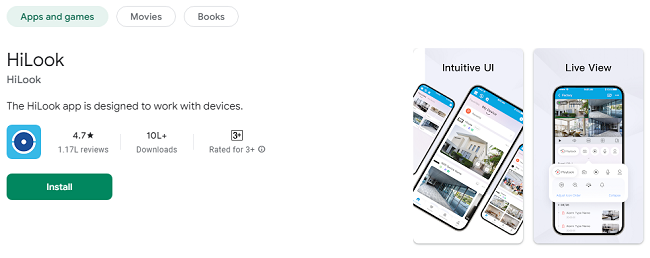
The HiLook app is designed to work seamlessly with HiLook's Digital Network Recorders (DNRs), Network Video Recorders (NVRs), and IP cameras that support Cloud Peer-to-Peer (P2P) functionality. With this app, you can monitor live video streams, play back recorded footage, receive motion detection alerts, and more—all remotely. It gives you access to your security cameras from anywhere in the world, ensuring peace of mind whether you're at home, at work, or on vacation.
Key Features of the HiLook App:
Real-Time Monitoring: Watch live video feeds from your security cameras in real-time.
Video Playback: View previously recorded footage at your convenience, ensuring you can review any events you may have missed.
Motion Detection Alarm Notifications: Get instant notifications when motion is detected by your cameras, helping you stay informed about any suspicious activity.
How to Get the HiLook App?
The HiLook app is available for both iOS and Android devices, making it accessible to a wide range of smartphone users. Below, we’ll explain the process of downloading, installing, and setting up the app on both types of devices.
Step 1: Download the HiLook App
For Android Devices:
Open the Google Play Store on your Android device.
Search for “HiLook” in the search bar.
Select the HiLook app from the search results.
Tap on the Install button to download the app to your device.
For iOS Devices (iPhone and iPad):
Open the App Store on your iPhone or iPad.
In the search tab, type in “HiLook.”
Select the HiLook app from the search results.
Tap Get, then authenticate the download using your Apple ID or Face/Touch ID.
Step 2: Create an Account
Once the app is installed, open it to begin the setup process. You’ll need to create an account to get started.
Open the HiLook app on your mobile device.
You will be prompted to either sign up or log in. Since this is your first time, click on Sign Up.
Enter your email address and create a strong password. This account will be used to link your security cameras and other devices to the HiLook app.
Agree to the terms and conditions, then tap Sign Up.
You may be asked to verify your email address by clicking a confirmation link sent to your inbox.
Step 3: Add Your Device
Once your account is created, you can add your HiLook device (DNR, NVR, or IP camera) to your account to start monitoring.
On the main screen of the app, tap on Add Device or the + icon.
You will be prompted to enter your device's serial number or scan the QR code of the device. The serial number is typically located on the back of your HiLook device or can be found in the device's manual.
Once the serial number or QR code is entered, the app will automatically detect your device.
Follow the on-screen instructions to complete the pairing process. This usually involves connecting your device to your home Wi-Fi network.
Once your device is successfully added, you can access live footage and begin using the app’s features.
Exploring the HiLook App Features
Now that you have the HiLook app installed and set up, it’s time to explore its key features.
1. Real-Time Monitoring
The main feature of the HiLook app is the ability to view live footage from your connected cameras. Whether you have a single camera or multiple devices, you can switch between different views effortlessly.
Tap on a camera to view the live feed.
Pinch to zoom in or out to get a closer look at specific areas.
If your system includes multiple cameras, swipe between them for a full overview of your property.
2. Video Playback
If you need to review previously recorded footage, the HiLook app allows you to play back videos for specific timeframes. This is useful for tracking specific events or checking on incidents you may have missed.
Tap on the playback icon within the app.
Select the date and time range of the footage you want to view.
Scroll through recorded videos and play them directly within the app.
Use the timeline to fast-forward or rewind to find specific events.
3. Motion Detection Alarm Notifications
One of the most useful features of the HiLook app is its ability to send notifications when motion is detected by your cameras. This feature helps you stay informed in real time, especially if there is unusual activity around your property.
Enable motion detection alerts in the app's settings.
When motion is detected, you’ll receive an instant push notification.
Tap on the notification to view the live footage or access the video playback for the specific time of the motion event.
Tips for Optimizing Your Use of the HiLook App
Enable Cloud Storage: Consider enabling cloud storage for your cameras, so recorded footage is backed up online. This will prevent data loss in case of device failure.
Set Up Motion Zones: Many HiLook devices allow you to define specific motion detection zones. This helps reduce false alarms by only notifying you when movement occurs in important areas.
Regularly Update the App: Make sure to update the HiLook app regularly to benefit from new features, bug fixes, and enhanced security.
Frequently Asked Questions (FAQs)
Here are some frequently asked questions about the HiLook app to help you get the most out of your experience.
1. Is the HiLook app free to use?
Yes, the HiLook app is free to download and use. However, some advanced features, such as cloud storage or premium device support, may require a paid subscription or plan.
2. Can I use the HiLook app on multiple devices?
Yes, you can use the HiLook app on multiple devices, including smartphones and tablets. Simply log in to the same account on each device to access your cameras.
3. How do I add multiple cameras to my HiLook app?
You can add multiple cameras to your HiLook app by tapping on the Add Device option and entering the serial number or scanning the QR code for each device you wish to add.
4. Can I control PTZ (Pan-Tilt-Zoom) cameras through the HiLook app?
Yes, if your HiLook device is a PTZ camera, you can control it through the app by swiping on the screen to adjust the camera’s view and zoom in or out.
5. Why am I not receiving notifications from the HiLook app?
If you’re not receiving motion detection notifications, make sure you’ve enabled push notifications in your device's settings. You can also check the app’s notification settings to ensure motion detection alerts are activated.
6. How can I delete a device from the HiLook app?
To delete a device from the HiLook app, go to the device settings, and there will be an option to remove or delete the device from your account. Once removed, you’ll no longer be able to access that device through the app.
7. Does the HiLook app support cloud storage?
Yes, the HiLook app supports cloud storage for video backup. You can subscribe to a cloud storage plan through the app to store your footage online for easy access and protection.
8. Can I use the HiLook app without a Wi-Fi connection?
The HiLook app requires an internet connection to access live feeds and receive notifications. Without a Wi-Fi or cellular connection, you will not be able to monitor your cameras remotely.
Conclusion
The HiLook app is an invaluable tool for anyone looking to manage their security systems remotely. With its user-friendly interface and powerful features, you can easily monitor your property, view recorded footage, and receive instant notifications when motion is detected. Whether you're at home or on the go, the HiLook app gives you peace of mind by keeping you connected to your security devices at all times.
By following the steps outlined in this guide, you can quickly set up the HiLook app and start enjoying its many features. Be sure to explore all of the app’s capabilities and adjust the settings according to your preferences. If you run into any issues, our FAQ section provides answers to common questions to help you troubleshoot and optimize your experience.
Trending Now
Updates