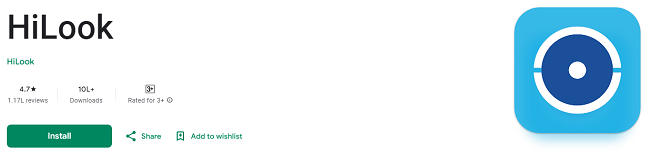
How to Download & Set Up HiLook App on Android & iOS Device?
In the age of digital security, the ability to remotely monitor your home or business has become a crucial part of modern surveillance. Whether you're traveling, at work, or simply relaxing at home, being able to access your security system anytime and anywhere offers peace of mind and increased security. The HiLook app, developed by HiLook, provides a seamless solution for managing your security cameras remotely through your smartphone.
This detailed guide will walk you through the steps on how to download, install, and set up the HiLook app on both Android and iOS devices. Whether you're new to the app or upgrading your system, this easy-to-follow tutorial ensures that you'll be up and running with real-time video monitoring, motion alerts, and video playback.
What is the HiLook App?
Before diving into the setup process, let’s briefly discuss what the HiLook app is. The HiLook app is designed to work with HiLook’s DNRs (Digital Network Recorders), NVRs (Network Video Recorders), and IP cameras. The app allows users to access their security cameras remotely, providing live feeds, recorded video playback, and notifications for events such as motion detection. It is designed for those who want to enhance their property’s security with a user-friendly mobile app that supports cloud-based surveillance.
Key Features of the HiLook App:
Real-time Monitoring: Access live video feeds from your security cameras.
Playback of Recorded Video: View previously recorded footage and search through past events.
Motion Detection Alerts: Receive push notifications when motion is detected by your camera system.
Easy Device Integration: Add and manage multiple HiLook devices with minimal setup.
How to Download HiLook App on Android Devices?
Downloading and installing the HiLook app on Android devices is a simple process. Just follow these steps:
Step 1: Open Google Play Store
On your Android device, go to the Google Play Store. This is where you can find and download apps for your Android phone or tablet.
Step 2: Search for the HiLook App
In the search bar at the top of the Play Store, type "HiLook." Make sure to spell it correctly to avoid any confusion with other apps. Press Enter or tap the search icon.
Step 3: Select the HiLook App
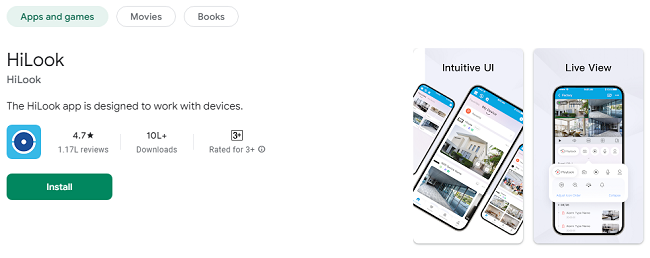
In the search results, you will see the HiLook app listed. It will have the HiLook logo as the app icon. Tap on it to open the app’s page.
Step 4: Install the App
On the app page, you’ll see an Install button. Tap on Install to begin the download and installation process. Depending on your internet connection, this may take a few moments.
Step 5: Open the App
Once the app has been installed, tap Open to launch the HiLook app. Alternatively, you can find the HiLook app icon on your home screen or app drawer and tap it to open.
Step 6: Sign Up or Log In
If this is your first time using the HiLook app, you will need to create an account. Tap Sign Up, enter your email address, and create a strong password. If you already have an account, simply tap Log In and enter your credentials.
Step 7: Add Your Device
After logging in, the app will guide you through adding your HiLook security device (such as a DNR, NVR, or IP camera) to your account. To add a device, tap on the Add Device button and follow the on-screen instructions.
Scan the QR code on the device or enter the device serial number manually.
Connect the device to your Wi-Fi network or the network your phone is using.
Once your device is successfully added, you can begin monitoring your cameras remotely.
How to Download HiLook App on iOS Devices?
Downloading and setting up the HiLook app on an iPhone or iPad is similarly straightforward. Follow the steps below to get started:
Step 1: Open the App Store
On your iPhone or iPad, launch the App Store by tapping on the App Store icon from your home screen.
Step 2: Search for HiLook App
In the search tab at the bottom of the screen, type in “HiLook.” Make sure you spell it correctly to avoid confusion.
Step 3: Select the HiLook App
From the search results, find the HiLook app and tap on it to open the app’s detailed page. The app should be listed with the HiLook logo and “HiLook” as the name.
Step 4: Install the App
On the app page, tap the Get button to begin the download. You may be asked to authenticate with your Apple ID, Face ID, or Touch ID, depending on your settings.
Step 5: Open the App
Once the app has been successfully installed, tap Open to launch it. Alternatively, you can find the app on your home screen or in your app library.
Step 6: Sign Up or Log In
If you're using the app for the first time, you will need to sign up for a new account. Enter your email address and create a password. If you already have an account, simply log in with your existing credentials.
Step 7: Add Your Device
Once you’re logged in, the app will prompt you to add your HiLook device. Tap on the Add Device button to enter your device's serial number or scan its QR code to link it to your account. Connect your device to your Wi-Fi network as instructed.
When your device is successfully added, you can start using the HiLook app to monitor live footage and manage your security system.
Setting Up the HiLook App
Once you’ve downloaded the HiLook app and logged in, you can configure it to suit your security needs. Here are some important setup steps you can follow to optimize your experience:
1. Connect to Your Security Device
The first step in setting up the HiLook app is adding your security camera or NVR/DNR device. Once your device is linked to the app, you’ll be able to view live feeds and access recorded footage.
2. Enable Motion Detection Alerts
To make the most of your security system, enable motion detection notifications. This will send you push alerts whenever the camera detects movement in its viewing area.
Open the HiLook app and go to the Settings section.
Select Motion Detection and turn on motion alerts.
You can configure the sensitivity and detection zones for more accurate alerts.
3. Configure Video Playback
The HiLook app allows you to play back recorded footage at your convenience. Set up the video playback feature by selecting a time frame from the camera’s storage.
Tap on the Playback icon within the app.
Choose the date and time range you want to view.
Scroll through and play back recorded events.
4. Set Up Cloud Storage (Optional)
For extra security, you may want to enable cloud storage for your recordings. Cloud storage provides a backup in case your device is damaged or stolen.
In the HiLook app, navigate to the Cloud Storage settings.
Choose a cloud storage plan and follow the prompts to link your HiLook device to the cloud service.
5. Customize App Settings
To make your HiLook experience even more personalized, you can adjust the app’s settings according to your preferences. You can enable or disable push notifications, choose between different camera layouts, and adjust the playback quality.
6. Manage Multiple Devices
The HiLook app allows you to manage multiple devices from a single account. If you have more than one camera, you can add each device to the app and view them simultaneously.
Go to Device Management to add new devices or remove old ones.
Switch between cameras to monitor different areas of your home or business.
Tips for Getting the Most Out of the HiLook App
Regularly Update the App: Keep your HiLook app up to date by checking for updates in the App Store or Google Play Store. Regular updates provide bug fixes, security improvements, and new features.
Use a Strong Password: Always use a strong and unique password for your HiLook account to protect your security footage and settings.
Optimize Wi-Fi Connection: For the best performance, make sure your camera and mobile device are connected to a stable Wi-Fi network. A strong connection will ensure smoother live streaming and reduce lag during playback.
Secure Your Account: Enable two-factor authentication (2FA) for added security. This adds an extra layer of protection to your account, ensuring that only authorized users can access your devices.
Check Battery and Storage: If you're using mobile data, check your device’s storage and battery to ensure optimal performance when using the HiLook app.
Common Troubleshooting Tips
While the HiLook app is generally user-friendly, you may encounter occasional issues. Here are some common problems and solutions:
Cannot Add Device: Double-check the serial number and ensure your device is connected to the internet. Also, confirm that you’re following the correct Wi-Fi setup instructions.
Not Receiving Notifications: Go to your phone’s Settings and ensure that Push Notifications are enabled for the HiLook app.
Poor Video Quality: Check your internet connection and adjust the video quality settings in the app for smoother playback.
Conclusion
The HiLook app is a powerful tool for remotely monitoring your security cameras and ensuring the safety of your property. By following the steps in this guide, you can easily download and set up the HiLook app on both Android and iOS devices, giving you complete control over your security system. With features like real-time video monitoring, motion alerts, and video playback, the HiLook app offers an intuitive and reliable solution for keeping an eye on what matters most.
Trending Now
Updates